
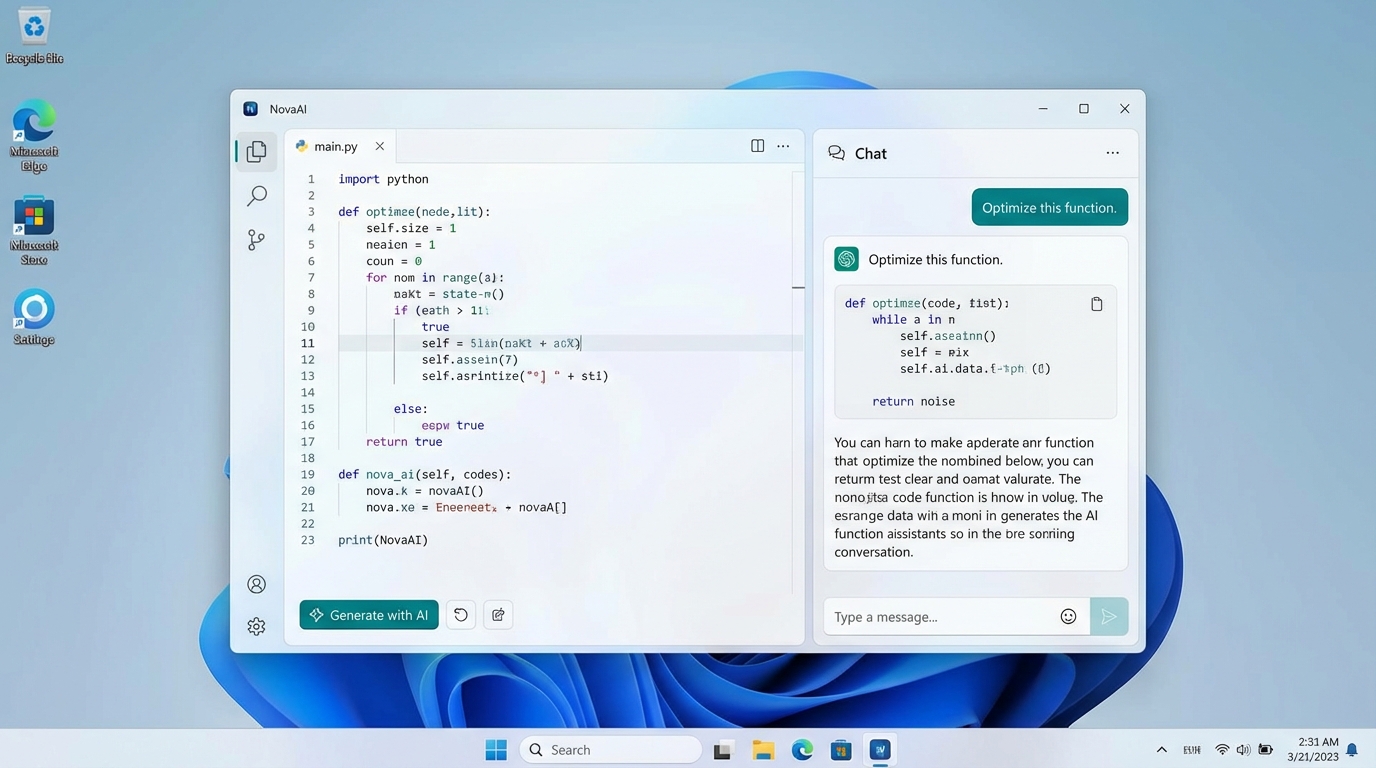
What is Claude Code for Windows?
Claude Code for Windows is Anthropic's CLI tool running through WSL (Windows Subsystem for Linux). While it works, it requires setting up a full Linux environment on your Windows machine. There's no native Windows version—you're essentially running Linux inside Windows to use Claude Code.
The short answer: If you want Claude Code on Windows, you need WSL. If you want a *native* Windows AI coding assistant with a GUI, open co|work is your best option.
The Windows Problem: Limited Options for AI Coding Assistants
If you're a Windows developer looking for an AI coding assistant like Claude Code, you've probably hit a frustrating wall. Claude Code works beautifully on Mac and Linux, where the terminal experience is native and first-class. On Windows, it's a different story.
You open the documentation. "For Windows users, we recommend WSL." You sigh. That means installing Windows Subsystem for Linux, configuring a whole Linux environment just to run a CLI tool, and dealing with the overhead of running commands through a compatibility layer. It works. It's just not native.
Maybe you've tried Cowork, Anthropic's newer tool. It looks promising in the screenshots. You check the releases. macOS only. Again.
The VS Code extension exists. You install it. It's helpful for inline suggestions and chat, but it doesn't have the full autonomy and multi-step reasoning you want. It's an assistant, not an agent.
This is the Windows problem: you have options, but none of them feel right.
Your Three Options for Windows (And Why They Fall Short)
Let's be honest about what's available.
Option A: WSL + Claude Code CLI
This is the "official" recommendation. Install Windows Subsystem for Linux, set up a full Linux environment, install Claude Code there, and access it through your terminal.
It works. Thousands of developers do this. The problem is complexity. You're not just installing a tool. You're maintaining a Linux layer on your Windows machine. File paths get confusing (are you in /mnt/c/Users/you or /home/you?). Performance takes a hit. WSL 2 is faster than WSL 1, yet it's still a virtualization layer. Every command goes through translation.
For developers already comfortable with WSL, this is fine. If you're new to Linux or just want a simple setup, it feels like using a sledgehammer to hang a picture frame.
Option B: VS Code Extension
The Claude (or similar) VS Code extensions give you AI assistance right in your editor. You can chat with the model, get code suggestions, and ask questions.
The limitation is scope. These extensions are constrained by VS Code's extension API. They can't freely execute commands, browse the web with full autonomy, or orchestrate complex multi-step tasks. They're chat interfaces with some IDE integration, not true autonomous agents.
If you want an AI that can "figure it out and do it," extensions won't get you there.
Option C: open co|work (Native Windows App)
This is the option you probably haven't heard about yet. open co|work is a native Electron app built by Autonoma that brings the full AI agent experience to Windows without WSL, without compromise, and without being locked to a single model.
It's not trying to be Claude Code. It's trying to solve the same problem Claude Code solves (giving you an AI agent that can code, reason, and act autonomously) while adding capabilities Claude Code doesn't have.
Why open co|work Works Great on Windows
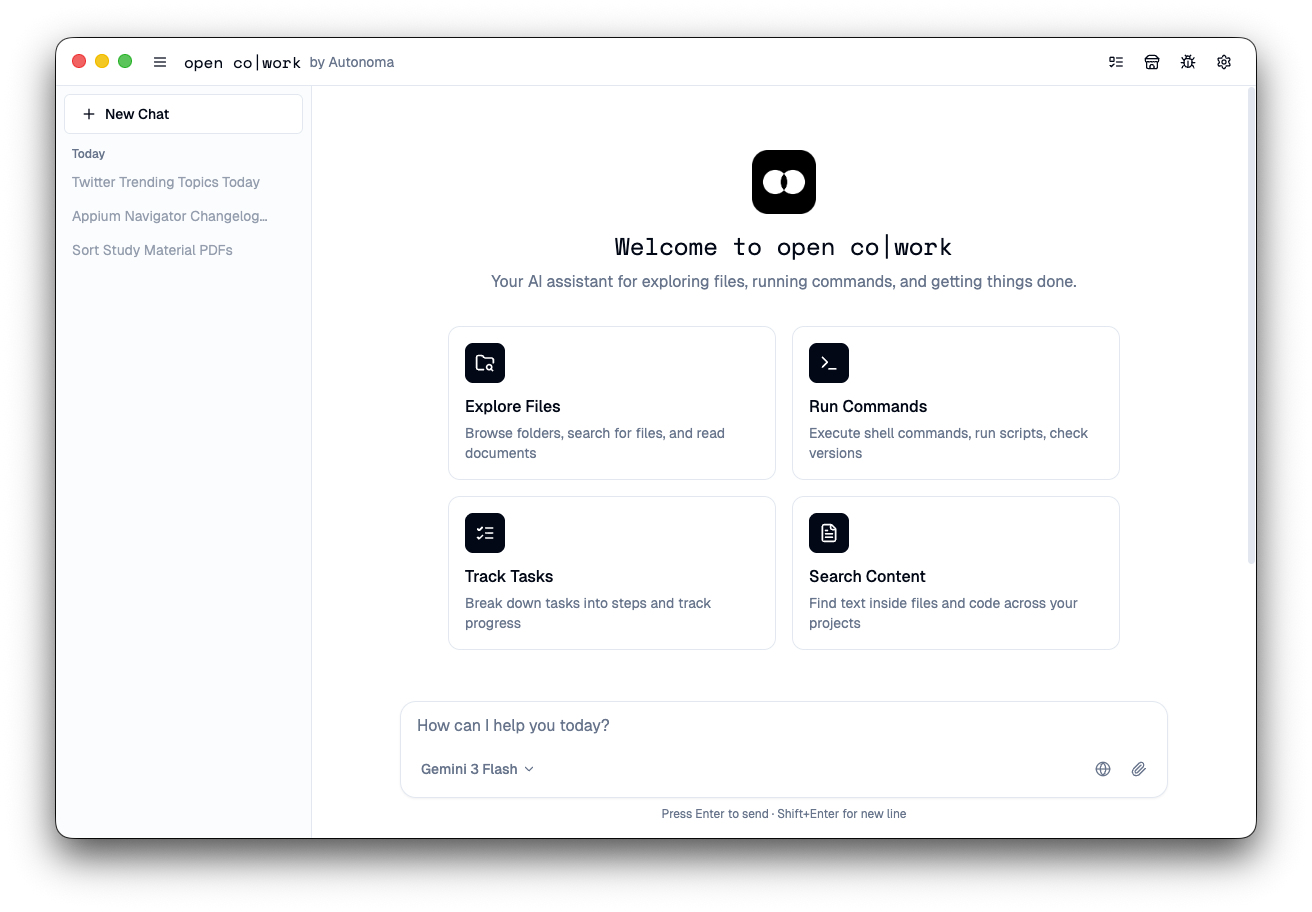
open co|work is an Electron app. That means it runs natively on Windows (and macOS and Linux) with a full graphical interface. No terminal required. No WSL needed. No dual-boot setup.
Here's what makes it different:
Native Windows Experience
Electron apps feel like native Windows applications because they are. You get a proper window, a GUI, system notifications, and integration with your Windows environment. It doesn't feel like you're running a Mac app through compatibility mode.
Works with Any Model via OpenRouter
Claude Code locks you into Anthropic's models. open co|work connects to OpenRouter, which means you can use Claude Opus, GPT-4, DeepSeek, Gemini, or any other model OpenRouter supports. You're not locked in. You can switch models mid-conversation if one isn't working well for your task.
This matters more than it sounds. Different models excel at different tasks. Claude is great for reasoning and refactoring. GPT-4 might be better for a specific API you're working with. open co|work lets you choose.
Extensible with Skills from skillregistry.io
This is where it gets interesting. open co|work supports "skills" from skillregistry.io. These are modular capabilities the agent can search, install, and use on-demand.
Need browser automation? Install the agent-browser skill. Want image generation? Install the image generation skill. The agent can do this itself when it realizes it needs a capability it doesn't have.
This is fundamentally different from static tools. The agent extends itself as needed.
Free and Open Source (MIT License)
open co|work is MIT licensed. That means you can use it commercially, modify it, fork it, and build on it. No vendor lock-in. No subscription required. No surprise pricing changes.
Step-by-Step: Installing open co|work on Windows
Here's how to get started.
Step 1: Check System Requirements
open co|work runs on Windows 10 or 11. Standard Electron requirements apply (basically any Windows machine from the last 5 years will work fine).
Step 2: Get the Application
open co|work is currently in active development. The recommended approach is to clone the repository and run from source. Head to the GitHub repository for the latest installation instructions.
Note: Pre-built binaries and installers are planned. For now, running from source ensures you get the latest updates and fixes.
Step 3: Install Dependencies
If you're building from source (current recommended method), you'll need Node.js installed on Windows. The project uses npm or yarn for dependency management. Clone the repo, navigate to the directory, and run the standard install process.
The GitHub README has the exact commands. These may change as the project evolves, so check there for the latest steps.
Step 4: Launch the App
Once dependencies are installed, you can launch open co|work. It opens as a native Windows application with a full GUI. No terminal required (unless you want one).
Configuration: Connecting OpenRouter and Choosing Your Model
On first launch, you'll need to configure open co|work to use your preferred AI model.
Get an OpenRouter API Key
Go to openrouter.ai and create an account. Navigate to the API keys section and generate a new key. OpenRouter offers free tier access to some models, and paid credits for premium models.
Copy your API key. You'll need it in the next step.
Add Your Key to open co|work
In the open co|work settings (usually accessible from the UI menu), paste your OpenRouter API key. The app stores this locally. It never leaves your machine.
Choose Your Model
This is where open co|work shines. You're not stuck with one model. In the settings, you'll see a dropdown or input where you can select from any model OpenRouter supports.
Want Claude Opus 4.5 for deep reasoning? Select it. Want to try GPT-4 for comparison? Switch to it. Want to use a cheaper model for simple tasks? Choose one.
Different tasks benefit from different models. open co|work lets you switch without friction.
Your First Project on Windows: A Walkthrough
Let's walk through a realistic first project.
Scenario: You want the agent to set up a new React project, install TailwindCSS, and create a landing page component.
Open open co|work. In the chat interface, type your request:
"Create a new React project with Vite, install TailwindCSS, and build a basic landing page component with a hero section."
The agent parses your request. It recognizes this is a multi-step task:
- Initialize a new Vite + React project
- Install and configure TailwindCSS
- Create a landing page component file
- Write the component code with a hero section
Because open co|work has file system access and can execute commands, it handles all of this. It creates the project directory, runs the install commands, generates the config files, and writes the component code.
You can watch the progress in the GUI. When it's done, you have a working project ready to run.
Why This Works Better Than Alternatives
With the VS Code extension, you'd have to run each command yourself. The extension would help you write the component code, but you'd still be the orchestrator.
With Claude Code on WSL, you'd get autonomous execution, but you'd be working through the WSL terminal. File paths would be Linux-style. If you wanted to open the project in a Windows-native editor, you'd need to navigate to /mnt/c/....
With open co|work, everything happens natively on Windows. The agent creates the project in your Windows file system. You can open it in any Windows editor immediately. No path translation needed.
Pro Tip: Extend with Skills from skillregistry.io
Here's where open co|work pulls ahead of static tools.
Let's say you're building that landing page, and you realize you need to test it with browser automation to ensure the responsive design works. You don't have Puppeteer or Playwright installed.
In a traditional setup, you'd stop, install the browser automation library, write test scripts, and configure everything manually.
With open co|work, you can tell the agent: "Install a browser automation skill and test this page's responsive behavior."
The agent searches skillregistry.io for browser automation skills. It finds agent-browser. It installs it. Then it uses the newly installed skill to launch a headless browser, load your page, resize the viewport, and report back on how the layout responds.
You didn't write a test script. You didn't configure anything. The agent extended itself and solved the problem.
Other Useful Skills
- agent-browser: Full browser automation, web scraping, testing
- image generation: Create images and diagrams on-demand (useful for design mockups, icons, etc.)
- pdf tools: Generate PDFs, extract text, manipulate documents
- data analysis: Process CSVs, run calculations, visualize data
The skill ecosystem is growing. You can also create your own skills and publish them to the registry.
Troubleshooting Common Windows Issues
"The agent can't find my files"
This usually happens if you're mixing WSL and Windows paths. open co|work runs natively on Windows, so use Windows paths (C:\Users\YourName\Projects\) not WSL paths (/mnt/c/Users/...).
"Commands aren't executing"
Make sure the agent has the necessary permissions. Some operations (like installing global npm packages) may require running open co|work as administrator.
"OpenRouter API key not working"
Double-check that you copied the entire key (they're long). Also verify you have credits or free tier access on OpenRouter. Some models require paid credits.
"The app feels slow"
Electron apps can be resource-intensive. Close unnecessary browser tabs and apps. If you're using a particularly large model (like GPT-4 or Claude Opus), responses may take longer. Try a faster model for simple tasks.
"I want to use a local model, not OpenRouter"
open co|work currently focuses on OpenRouter integration, but because it's open source (MIT license), you can modify it to support local model endpoints. Check the GitHub repository for community forks that add local model support.
The Real Advantage: A Native Windows AI Agent
The Windows developer experience has always been different from Mac and Linux. Tools are often macOS-first. "Windows support coming soon" is a meme at this point.
open co|work doesn't treat Windows as an afterthought. Electron makes it a first-class platform. You get the same features, the same performance, the same extensibility as users on any other OS.
More importantly, you get a true AI agent. Not a chat interface. Not a code completion tool. An agent that can reason, plan, execute commands, manage files, install tools, and extend itself with new skills as needed.
Claude Code set the bar for what autonomous AI coding assistants should be. open co|work meets that bar while adding flexibility (any model via OpenRouter), extensibility (skills from skillregistry.io), and native Windows support.
If you've been waiting for a proper AI coding agent on Windows, this is it.
Next Steps: Getting Started with open co|work
Ready to try it? Here's what to do:
- Visit the GitHub repository: Search for "open cowork autonoma" on GitHub to find the repo. Star it if you find it useful.
- Follow the installation guide: The README has the latest installation instructions for Windows.
- Get an OpenRouter API key: Sign up at openrouter.ai and generate a key.
- Configure and launch: Add your key to open co|work and choose your preferred model.
- Start with a simple task: Ask the agent to create a project, refactor some code, or install a dependency. Get comfortable with the workflow.
- Explore skills: Browse skillregistry.io and see what capabilities you can add.
- Join the community: There's a Discord server (check the repo for the link) where users share workflows, troubleshoot issues, and discuss new features.
Why This Matters for Windows Developers
Windows has always been a productivity powerhouse for developers. Visual Studio, WSL, Docker Desktop, and now native AI agents like open co|work make it a genuinely competitive platform for modern development.
You don't need to switch to macOS to get cutting-edge AI tools. You don't need to run everything through WSL. You can have a native, fast, extensible AI agent that works the way Windows works.
open co|work isn't just "Claude Code for Windows." It's a rethinking of what an AI coding agent should be: open, flexible, extensible, and platform-agnostic.
Try it. You might not go back to traditional coding tools.
Frequently Asked Questions
Does Claude Code work on Windows?
Claude Code can run on Windows through WSL (Windows Subsystem for Linux), but it's not a native Windows application. You need to set up a Linux environment within Windows, which adds complexity and performance overhead. open co|work offers a native Windows alternative.
What's the best AI coding assistant for Windows?
For Windows users who want a native GUI experience without WSL, open co|work is the best option. It's a native Electron app that runs directly on Windows with full AI coding capabilities, model flexibility via OpenRouter, and extensible skills from skillregistry.io.
Do I need WSL to use open co|work on Windows?
No. open co|work is an Electron application that runs natively on Windows 10 and Windows 11. No WSL, no Linux subsystem, no compatibility layers required.
What are the system requirements for open co|work on Windows?
open co|work runs on Windows 10 or later with standard Electron requirements. Most Windows machines from the last 5 years will work fine. You'll also need an internet connection for OpenRouter API access.
Can I use open co|work with my Windows file system?
Yes. open co|work works directly with Windows file paths (C:\Users\YourName\Projects\). There's no path translation or confusion between Linux and Windows paths like you'd have with WSL.
Is open co|work free for Windows users?
Yes. open co|work is MIT licensed and free for all platforms including Windows. You only pay for API usage through OpenRouter, which is typically cheaper than subscription-based alternatives since you only pay for what you use.